PC Bottleneck Calculator – Check Your CPU & GPU Balance Free
Check if your CPU and GPU are balanced. Enter your specs below for a free, instant bottleneck score and clear upgrade tips.
PROCESSOR (CPU)
GRAPHICS CARD (GPU)
SYSTEM SETTINGS
CPU #1
CPU #2
YOUR GPU
How to Use the Bottleneck Calculator
Getting your result takes less than a minute no downloads, no sign-up, no technical background needed. Just three simple steps and you’ll know exactly how your build stacks up.
Enter Your CPU, GPU & RAM
Start by picking your processor, graphics card, and memory from the dropdown menus. Not sure what’s inside your machine? Open Task Manager (Ctrl + Shift + Esc) on Windows and check the Performance tab it lists your CPU, RAM, and GPU right there. On a laptop, the same steps work, since mobile chips are included in our list too.
You can also set your target resolution (1080p, 1440p, or 4K) and pick what you mainly use your PC for gaming, editing, streaming, or everyday tasks so the result matches your actual workload, not a generic average.
Get Your Bottleneck Score in Seconds
Hit the calculate button and your result appears right away no waiting, no page reloads. You’ll see which part of your setup is holding the other back, a simple score showing how big the gap is, and a straightforward suggestion on what to upgrade first (if anything at all).
If your parts are well matched, you’ll see that too meaning your money is better spent elsewhere, not on a new component you don’t actually need.
What Is a PC Bottleneck?
A PC bottleneck is when one component usually your CPU or GPU can’t keep up with the other, slowing down your whole system’s performance. This imbalance shows up as either a CPU bottleneck (your processor holding back a strong graphics card) or a GPU bottleneck (your graphics card struggling to match a fast CPU).
Think of it like a two-lane road merging into one: it doesn’t matter how many cars enter, traffic still slows at the narrow point. In your PC, that narrow point could be an outdated CPU holding back a powerful GPU, or the other way around and it directly affects your FPS and overall gaming performance.
In short: a bottleneck isn’t a broken part it’s just an imbalance between your CPU and GPU. Once you identify which one is causing it, fixing your PC’s performance becomes simple.
Is a Bottleneck Bad for Your PC
No bottlenecking doesn’t cause hardware damage. It’s not a fault; it’s simply one component (usually your CPU or GPU) working at full capacity while the other waits. Your hardware is designed to handle this kind of uneven workload without any harm to its lifespan.
That said, a severe bottleneck can still hurt your gaming experience and overall system performance low FPS, stuttering, and wasted power you’re paying for. A small bottleneck (under 10%) is completely normal and nothing to worry about. It only becomes a real problem when it’s large enough to noticeably drag down your games or apps.

Understanding Your Bottleneck Score
Your bottleneck score is a simple percentage that shows how much one component your CPU or GPU is holding back the other. The higher the number, the bigger the imbalance in your system. This score helps you decide whether your PC just needs a small tweak or a real hardware upgrade.
What a High % Means (Needs Upgrade)
A score above 20-30% means one component is clearly limiting the other, causing low FPS, stuttering, or slow renders. This is when an upgrade makes sense targeting the weaker part (CPU or GPU) instead of replacing your whole system.
What a Low % Means (Balanced System)
A score under 10% means your CPU and GPU are well matched. Your system is balanced, and you’re getting the performance you paid for without one part sitting idle. Between 10-20% is still fine for most users a minor imbalance you’ll rarely notice outside demanding games.
CPU Bottleneck vs GPU Bottleneck: What’s the Difference?
Both slow your PC down, but in opposite ways and knowing which one you have decides what you should upgrade.
CPU Bottleneck
Your processor can’t prepare data fast enough, so your GPU sits waiting with usage well below 100%. You’ll notice inconsistent FPS, stuttering, and input lag especially in open-world games, simulations, or titles with heavy AI and physics. This is common at 1080p with high-end GPUs, since the graphics card finishes frames quickly and ends up waiting on the CPU. Lowering your graphics settings won’t help much here, since the CPU is the real limit.


GPU Bottleneck
Your graphics card is maxed out at or near 100% usage while your CPU has room to spare. This shows up as steady but lower FPS, especially at 1440p or 4K. It’s actually the more common and less problematic of the two, since it just means your GPU is being fully used.
Real example
Pair a Ryzen 5 5600 with an RTX 4090 at 1080p, and the GPU will spend most of its time waiting a classic CPU bottleneck. Flip it an RTX 3050 with a Ryzen 9 7900X at 4K and the GPU becomes the clear limit instead.
Quick rule
low GPU usage points to a CPU bottleneck; maxed-out GPU usage points to a GPU one.
Common Types of PC Bottlenecks
A bottleneck can come from any part of your system not just the CPU or GPU. Here’s a quick breakdown of where imbalances usually show up.

CPU, GPU & RAM Bottlenecks
The CPU and GPU are the most common culprits one prepares data, the other renders it, and if either falls behind, performance drops. RAM plays a supporting role: too little (under 16GB for modern games) or slow, single-channel memory can quietly choke both components, even if your CPU and GPU are perfectly matched.
Storage, Power Supply & Thermal Bottlenecks
An old HDD or SATA SSD can bottleneck load times and cause stuttering during open-world streaming, even with a fast CPU and GPU. A weak power supply can starve your GPU of clean power, preventing it from hitting boost clocks or causing random crashes. And thermal throttling when a chip overheats and slows itself down can mimic a hardware bottleneck even though nothing is technically broken.
Typical Symptoms of a CPU Bottleneck
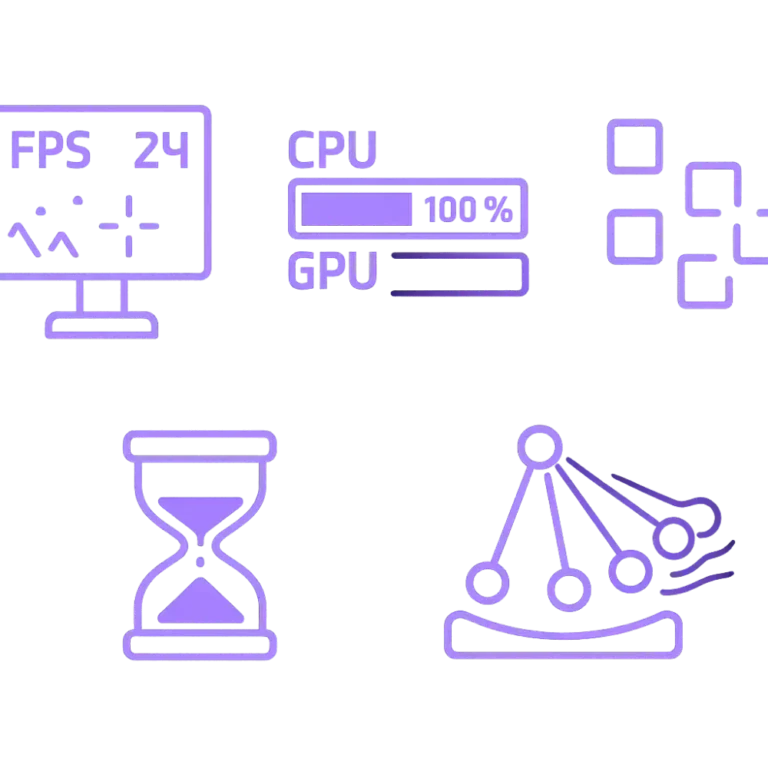
- GPU usage sits well below 100% while the CPU stays maxed out
- Inconsistent FPS and stuttering, especially in crowded or physics-heavy scenes
- Lowering graphics settings barely improves performance
- Input lag or choppy frame pacing at high refresh rates
Main Causes of CPU Bottlenecks
- Pairing an older or entry-level CPU with a powerful GPU
- Playing at 1080p or high refresh rates (144Hz+), where the CPU has to work harder
- Slow or single-channel RAM feeding the CPU too slowly
- Background apps, streaming, or heavy multitasking eating CPU cycles
How to Fix a Bottleneck
Most bottlenecks can be reduced before you spend a single rupee on new parts and only a few actually call for an upgrade.
Free Fixes (No New Hardware Needed)
- Update your graphics drivers outdated ones often waste 5-10% performance for free
- Close background apps, overlays, and browser tabs eating up system resources
- Lower in-game settings like shadows, draw distance, or texture quality instead of resolution
- Enable game mode and disable unnecessary startup programs
- Clean out dust and reapply thermal paste if temperatures are running high
- Check Windows power plan switch from “Balanced” to “High Performance”
When You Actually Need to Upgrade
If you’ve tried the fixes above and performance is still poor, the imbalance is likely hardware-based. Upgrade when your usage numbers consistently show one part maxed out while another sits idle, or when a game’s minimum requirements simply exceed what your setup offers. In this case, target the specific weak link not your whole rig for the best return on your budget.
Why Use Our Bottleneck Calculator?
Skip the guesswork and forum debates. Our free calculator gives you an accurate breakdown of your system’s performance balance in under 10 seconds no email or download needed plus a clear recommendation on what to buy next, so you avoid wasting money on the wrong part.
Free, Fast & Updated Hardware Database
No cost, no sign-up, and no outdated results. Our database covers the newest chips including the RTX 50-series and Ryzen 9000 lineup alongside hundreds of older models, refreshed as new hardware launches. Results are cross-checked against real benchmark scores, not just paper specs, so you’re comparing actual performance, not marketing numbers.
Accurate Results Backed by Real Benchmarks
We don’t rely on spec sheets alone. Every result is calculated using tested performance data clock speeds, core counts, and real gaming output so the score you get reflects how your parts actually behave together, not just how they look on paper.
Stop Guessing
Random forum advice and “just upgrade your GPU” comments don’t fix anything they just cost you money. Run your specs through the tool and get your exact bottleneck percentage, so you know precisely where the imbalance is before you spend a single rupee.
Save Money
Buying the wrong upgrade is an expensive mistake. Our tool points to the exact weak link in your build, so every rupee you spend actually improves performance instead of sitting on a part you didn’t need.
Data-Driven Upgrades
No opinions, no hype just numbers. Every recommendation comes from real benchmark data, comparing your actual CPU and GPU scores against a growing database of tested combinations, so you know exactly what to upgrade based on facts, not guesses.
Optimize Settings
Sometimes the fix isn’t new hardware it’s the right settings. Enable DLSS, FSR, or frame generation if your game supports them, and adjust resolution scaling based on your exact build smoother gameplay, zero extra spending.
How the Bottleneck Calculator Helps You
Enter your CPU and GPU, and get a plain-English bottleneck score in return: is your PC balanced, or is one part dragging the other down? Instead of scrolling through forum threads for hours, you’ll know your exact weak point and what fixes it with zero technical background needed.
In Gaming
The GPU usually carries the heaviest load especially at higher resolutions and detail settings while the CPU controls frame consistency and minimum frame rates during action-heavy scenes. Getting this balance right means smoother gameplay, not just a higher average FPS number.
Video Editing and Rendering
Here, the CPU often matters just as much as the GPU. Core count and clock speed drive export times and timeline scrubbing, while GPU acceleration only helps if it isn’t waiting on the CPU to feed it data. RAM and fast storage matter too, since large project files move constantly between them.
General Use
For everyday tasks browsing, office work, streaming video a modest, well-matched CPU and GPU is enough. The priority here shifts to RAM and storage speed, since responsiveness depends more on how fast your system opens apps and switches between them than raw processing power.
Best Times to Use a Bottleneck Calculator
Run it before buying new parts, when building a PC from scratch, right after a sudden performance drop, or whenever you’re pairing new hardware with something older catching a mismatch early saves you from wasting money on the wrong upgrade.

When You’re Facing Gaming or Rendering Problems
Sudden FPS drops, stuttering, or slow export times aren’t always a sign your PC is dying often it’s just one part struggling to keep up with the rest. Run a quick check before assuming you need a full upgrade.
When Planning a New PC Build
Picking parts on paper doesn’t guarantee they’ll work well together. Test your planned CPU and GPU pairing before you buy, so your budget goes toward a build that actually performs not just looks strong on a spec sheet.
When You’re Upgrading One Part of Your Setup
Swapping in a new GPU or CPU alone can shift the balance of your whole system. Check the pairing afterward to make sure your older component isn’t now the one holding everything back.
Bottleneck Calculator vs. Manual System Analysis
Checking your PC for a bottleneck manually means opening tools like MSI Afterburner or HWiNFO, running a game for 20-30 minutes, and logging your CPU and GPU usage side by side. It works, but it takes time, some technical know-how, and still leaves room for misreading the numbers.
A bottleneck calculator for PC builds skips all of that. Just select your CPU, GPU, and workload, and get an instant estimate of which part is holding your system back no monitoring software, no waiting, no guesswork.
Manual testing still has its place if you want to see exactly how your specific setup behaves in real time, especially after overclocking. But for a quick, accurate starting point before you buy or upgrade anything, a calculator gets you there in seconds instead of hours.
| Quick comparison | Bottleneck Calculator | Manual Testing |
| Time needed | Seconds | 30+ minutes per game |
| Technical skill required | None | Moderate |
| Best for | Quick pre-upgrade checks | Fine-tuning an existing build |
| Accuracy on overclocked systems | Estimate only | More precise |
When Manual Analysis Is Better
Manual analysis wins when a calculator’s stock-speed estimate won’t cut it mainly if you’ve overclocked your CPU/GPU, or you’re chasing a stutter in one specific game rather than a general system check.
Tools for Manual Analysis
- MSI Afterburner tracks and logs live CPU/GPU usage while gaming, so you can review the data after
- HWiNFO deeper breakdown of temps, clock speeds, and per-core load
- RTSS overlays live stats on-screen while you play, pairs with Afterburner
- GPU-Z quick check of real GPU clock speed and load without a full monitoring setup
Run one for 20-30 minutes across a couple of games whichever component sits closer to 100% is your bottleneck.
Conclusion
A bottleneck rarely announces itself it just shows up as dropped frames, low GPU usage, or a system that feels slower than its specs suggest, and the only way to know for sure whether your CPU or GPU is the real limit is to run the numbers, not guess. Use the Calculator tab to check your bottleneck percentage and boost your gaming FPS, Compare to settle a choice between two CPUs or GPUs, and Optimal Match to find the exact upgrade that fixes your system’s performance run your specs above and build a balanced, high-FPS PC that finally performs the way it should.